Back up the entire SaveData folder before testing a story or competition workaround. ReStory supports five slots after 1.0.013r, but a manual copy is still the safest rollback for a current soft lock. Close the game before opening or copying these folders.
Choose your platform and copy the folder
Close ReStory before copying files. Steam Deck uses a hidden Proton prefix; a custom Steam library can change the path before compatdata.
%UserProfile%\AppData\LocalLow\Mandragora\RestoryKeep your place while you work
Progress is stored only in this browser and is never uploaded.
ReStory save locations
Close the game before opening or copying these folders.
| Platform | Restory folder |
|---|---|
| Windows | %UserProfile%\AppData\LocalLow\Mandragora\Restory |
| macOS | ~/Library/Application Support/Mandragora/Restory |
| Linux / Steam Deck | ~/.local/share/Steam/steamapps/compatdata/3812600/pfx/drive_c/users/steamuser/AppData/LocalLow/Mandragora/Restory |
Back up before replacing anything
Exit ReStory and let any active save finish. Copy the entire Restory folder to a separate location and give the copy a date. Do not experiment on the only copy of SaveData. If Steam Cloud is enabled, allow its current sync to finish before temporarily disabling it for the restore; otherwise the cloud can overwrite the local file you are trying to test.
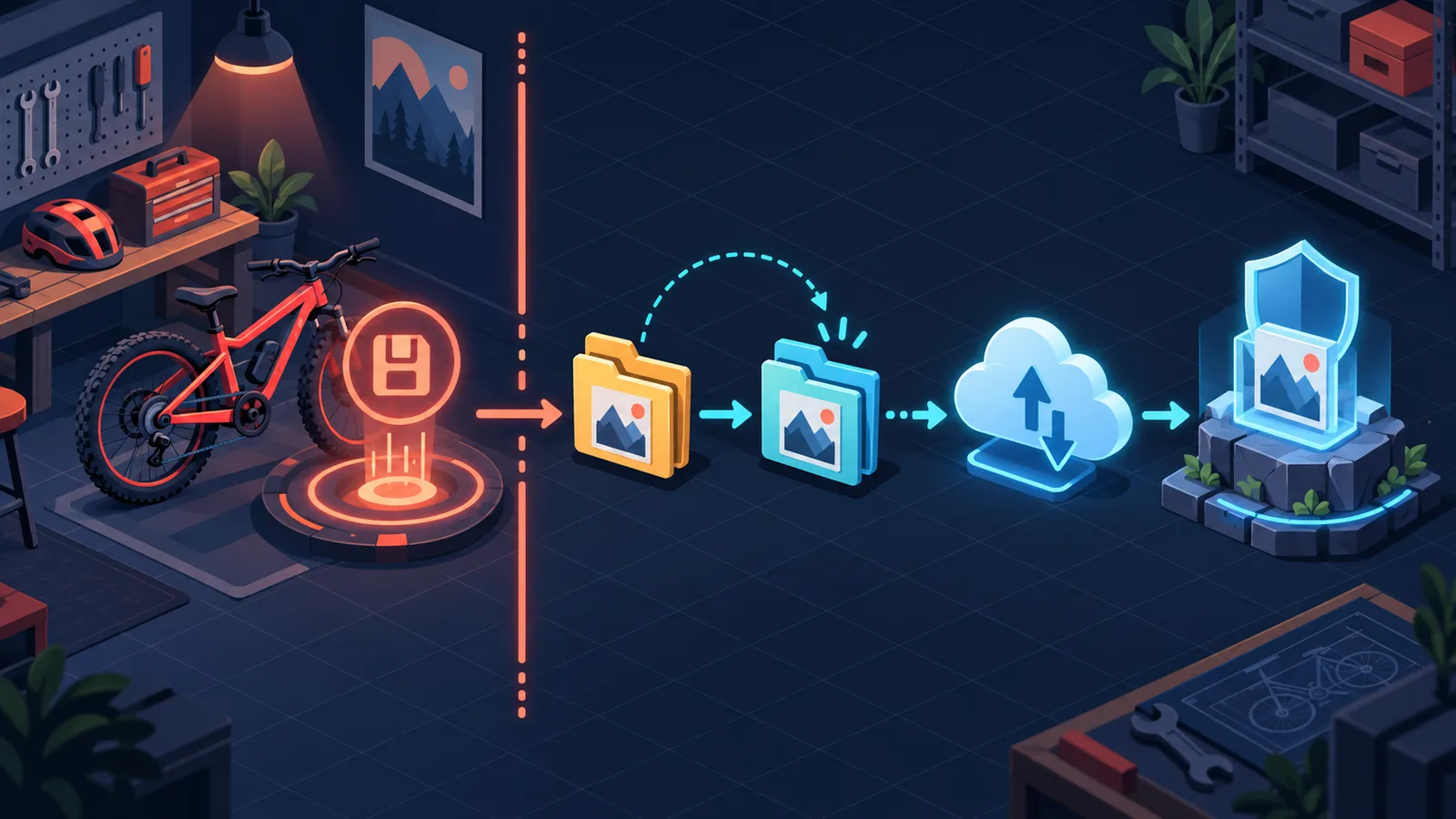
Original editorial save-and-backup flow. It separates in-game saving from file backup and does not prove that cloud recovery succeeded.
Can ReStory demo saves transfer to the full game? — No
Developer-confirmed: demo saves do not transfer because the retail version changed substantially, including under-the-hood changes. Start a new retail save. Do not copy demo files into SaveData or BackupSaveData. Open the Demo guide for the full explanation; full-version backup, transfer and recovery instructions are in their own sections below.
Can I transfer a ReStory save to another PC or Steam Deck?
Yes, but protect both the source and destination first. Steam Cloud is the simplest Windows-to-Windows route when both devices show the same current build and synchronization has completed. For a manual move, close ReStory and Steam, copy the complete SaveData and BackupSaveData folders, keep the originals, then start Steam and verify the slot before overwriting anything. A PC-to-Steam-Deck manual copy is technically possible through the game's Proton prefix, but the exact prefix can differ by Steam library; use the path already documented on this page and treat the move as a reversible test.
- Confirm both devices use the same ReStory build
- Let Steam Cloud finish before launching on the destination
- Back up SaveData and BackupSaveData as a pair
- Copy with the game and Steam closed
- Open one slot and verify the day, money and active orders
- Keep the source backup until the destination has saved successfully
Official restore procedure
Temporarily disable Steam Cloud for ReStory, open Restory > BackupSaveData, then enter the newest numbered backup folder. Copy the newest file with the .restory extension into Restory > SaveData and replace the existing file only after your safety copy exists. Launch the game, inspect the loaded day, money, open orders, and story progress, and keep Steam Cloud disabled until you know the restored state is correct.
- Close the game
- Back up the full Restory folder
- Temporarily disable Steam Cloud
- Open the latest numbered BackupSaveData folder
- Copy the newest .restory file
- Paste it into SaveData
- Launch and verify the restored progress
After the restore
Once the restored game loads correctly, exit normally and make a fresh copy of the working folder. Re-enable Steam Cloud and read any conflict dialog carefully: choose the copy whose timestamp and progress you just verified rather than automatically selecting cloud or local. Keep the untouched pre-restore backup until the next normal save and cloud sync both succeed.
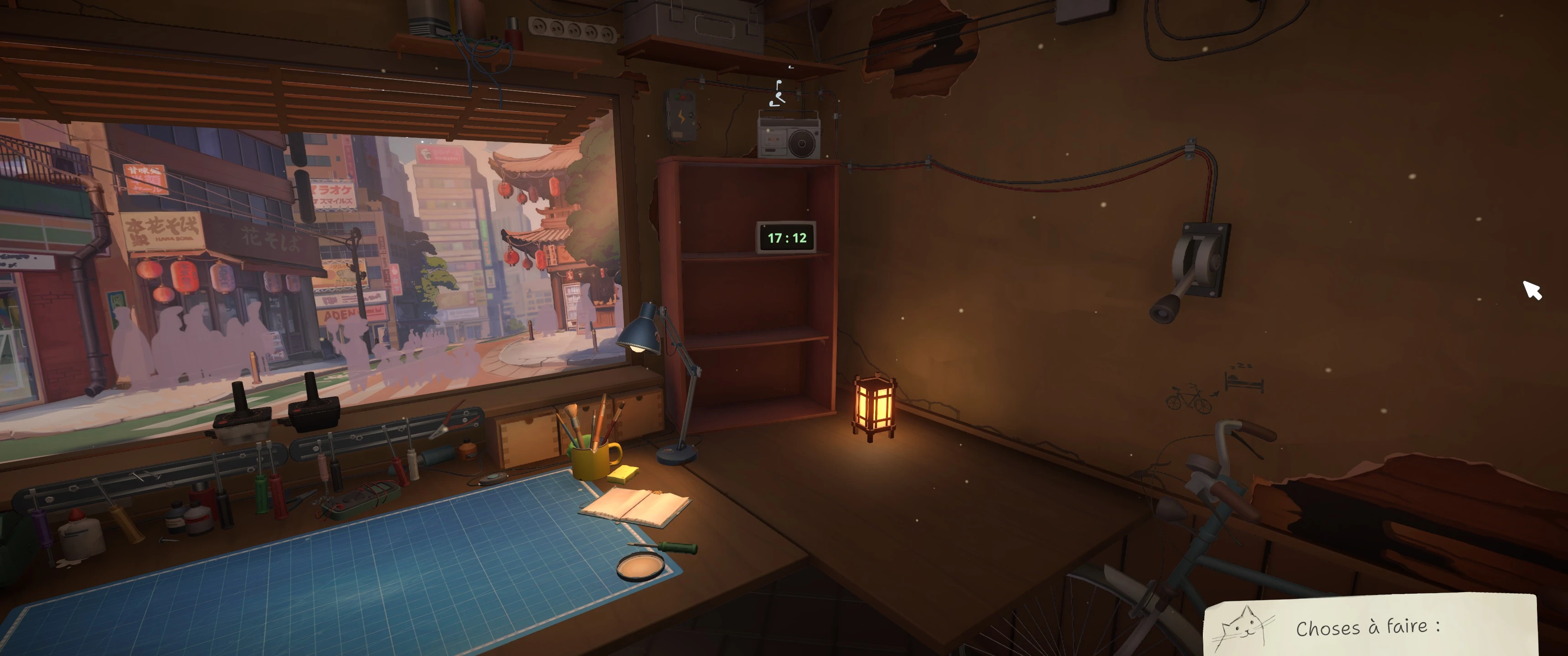
The bicycle is on the right side of the workshop. This locates the in-game save interaction, not the backup-file restore screen.
Save corrupted or wrong progress after an update?
Do not start another New Game or overwrite all five slots. Close ReStory, copy the entire Restory folder first, and only then compare SaveData with the newest .restory file inside the latest numbered BackupSaveData folder. Restore one copied file at a time with Steam Cloud temporarily disabled; reopen the game and verify day, money, orders, licenses, and story progress before re-enabling sync.
Five save slots in patch 1.0.013r
Patch 1.0.013r adds five save slots. Use separate slots for a normal playthrough, a pre-choice branch, an achievement branch, a recovery checkpoint, and one rotating backup. These in-game slots complement—not replace—a copy of the save folder before manual restoration.
What SaveData and BackupSaveData contain
According to tinyBuild support, SaveData contains the five most recent saves from the current playthrough. Selecting New Game stores the previous playthrough in a new folder inside BackupSaveData. A numbered backup folder is therefore not automatically the newest individual save: open the latest folder and then choose its newest .restory file.
Steam Deck path and hidden folders
The Steam Deck uses Proton's Windows-style LocalLow folder inside compatdata/3812600. In Desktop Mode, enable hidden files so .local is visible, then follow the full path exactly. Do not substitute another game's compatdata number. If ReStory is installed on another library drive, begin from that Steam library's steamapps folder.
Save crash status in 1.0.010r
Official Update #2 states that version 1.0.010r fixes a long-save issue and a possible crash while saving. Update before diagnosing an old report. A patch fix does not replace backups: if saving still hangs, preserve the current folder, record the build, platform, free disk space, and last action, and report the shortest reproduction without repeatedly forcing the game closed.
Common mistakes
Do not restore while the game is open, rename a random file to .restory, delete BackupSaveData, or enable Cloud before checking the result. Do not paste the numbered folder itself into SaveData; the official procedure copies the newest .restory file inside it. If no backup exists, stop before creating more New Game folders or syncing an unwanted state.
Can I Recover My Previous ReStory Save After Starting a New Game?
Recovery is possible only if an older autosave, an extra file for the relevant slot, or a numbered BackupSaveData copy still contains the previous progress. Close ReStory first and copy the entire Restory folder before launching, saving, replacing files, or changing Steam Cloud. The five current saves in SaveData, extra per-slot files reported in the supplied community record, and numbered New Game folders in BackupSaveData are different things; five slots do not guarantee five historical versions. After protecting the folder, inspect the candidates, temporarily disable Steam Cloud, follow the official restore procedure on a copy, and verify the exact day, money, orders, and story state. If no candidate contains the old progress or BackupSaveData is absent, stop. The supplied community record says that attempt ended without a successful recovery and attributes a reply that the save appeared lost; because the thread could not be reopened on September 18, treat that case-specific outcome as unverified, not a guarantee. Support may review the case, but overwritten data has no guaranteed recovery. Do not upload saves publicly or run an unknown recovery EXE or DLL.
- Protect the entire current Restory folder before testing
- Confirm which autosave, extra slot file, or BackupSaveData candidate actually exists
- Use the official restore steps with Steam Cloud temporarily disabled
- Verify the specific old day, money, orders, and story progress
- If no valid candidate exists, stop saving and contact support without promising recovery
Research links
These are the primary pages used to check the facts and current release context in this guide.
Official information, observable release behavior, and community reports are deliberately separated. A community report is not presented as a universal fix until it can be reproduced or supported by current patch notes.