If you have seen the ending or credits, check the Post-story guide first: stopped story visits alone do not prove a damaged save. If you have not finished the story, identify the last completed character task or device hand-in and the current To-Do, rather than diagnosing by Day 50 alone. Then check outstanding counter jobs, email, shelves, software, licences and conversations. Do not restart or skip days at random to force progress.
Find the last story checkpoint that completed
Check left to right. Stop at the first state that does not match your save.
- ⌚KaitoInvitation and soldering-iron follow-up
- ▦Brick GameReturn and rival hand-in
- ▣XI-boxTourist device returned
- ★CompetitionBox, timer and result state
- ☏No customersTo-Do, mail and pending orders
What is happening in your save?
Current story status — checked September 20
Match the last completed hand-in to one evidence level and one safe next action. The current cluster covers Kaito, Brick Game, Tourist XI-box, competition and no walk-up customers. Only the rock-musician guitar blocker is an official 1.0.015 target; the other rows remain developer-acknowledged context, player reports, or general diagnostics. A source recheck today is not a newly confirmed fix.
| Checkpoint | Evidence state | Next safe action |
|---|---|---|
| Rock-musician guitar | Official 1.0.015 target | Update and retest a protected pre-hand-in save |
| Brick Game / rival hand-in | Player reports; broader issue acknowledged | Record last NPC, order and To-Do |
| Tourist XI-Box return | Player report; exact cause unconfirmed | Use the Tourist record below |
| Competition transition | Player reports | Separate event result from repair state |
| No later walk-up customers | Unknown without save context | Check active work, mail and story state |
Day 50 with no progress: diagnose the event node, not the day number
Status: Player reported / unresolved. Day 50 is not a verified universal trigger. Record the last named character, hand-in, To-Do, email, license, competition state, open story box, and build. Choose the next check from those event nodes; do not create a new save or repeat random days solely because the counter says 50.
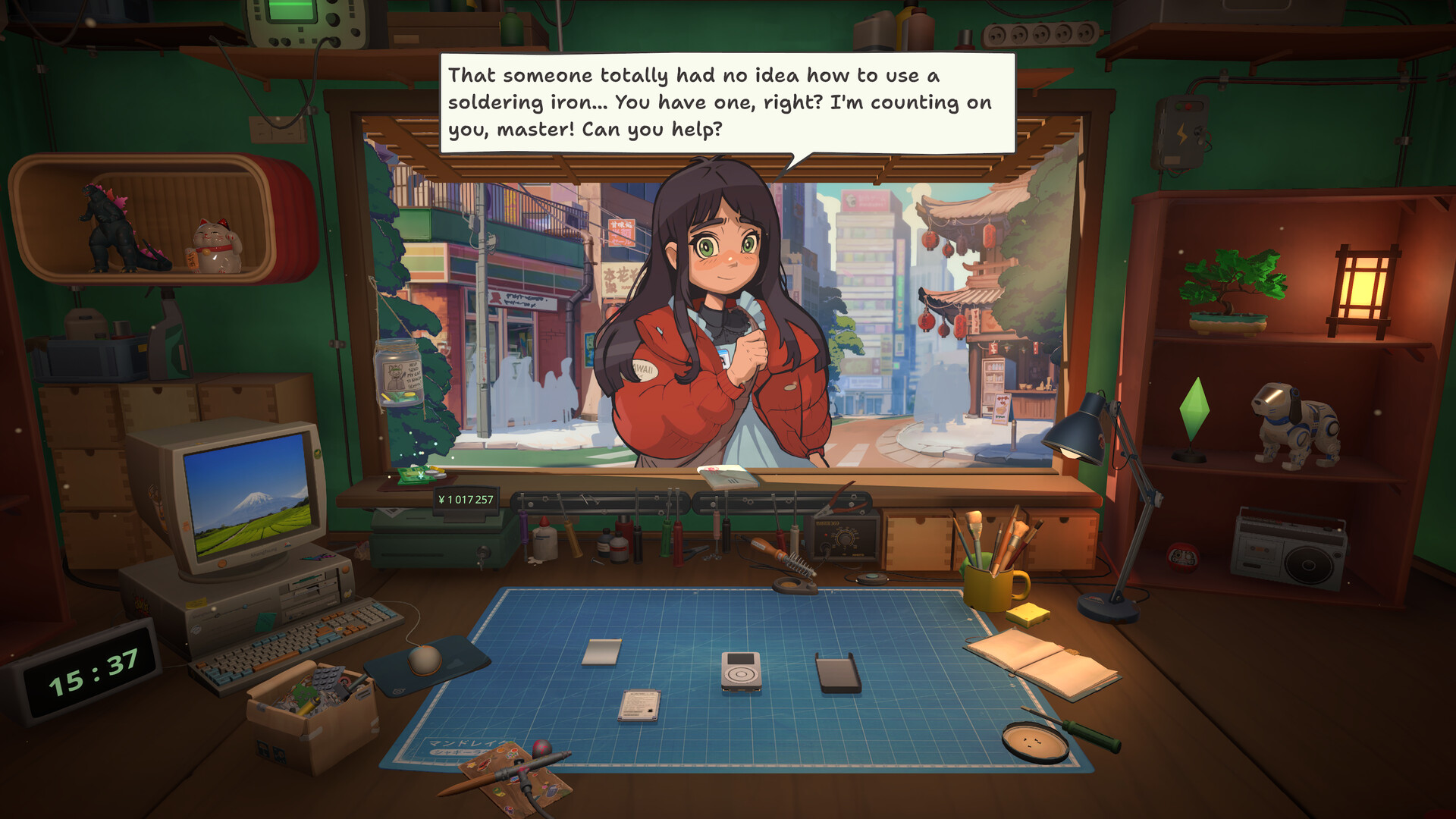
Orders begin at the counter. Read the request, then check the To-Do list before deciding that progress is blocked.
Update log — reports checked September 3, 11 and 13
These dated records are retained as history, not appended as competing current-status blocks. Rechecking a source on September 20 did not establish a new fix. Use the status table above for the current next action and the issue-specific sections below for preserved details.
| Checked | Scope retained | What changed |
|---|---|---|
| September 3 | Kaito / Soldering Iron; Championship / Robby; Story quests complete automatically | Player reported / Watching; no universal fix established |
| Aug 31 / Developer reply #13 — Sep 2 | Tourist XI-Box return; broader story-logic issue | Player report followed by developer acknowledgement; no exact fix confirmed |
| September 11 | Kaito, Brick Game, Tourist XI-box, competition and no walk-up customers | Separated into distinct symptom branches |
| September 13 | One symptom-to-evidence-to-next-action table | Still current on September 20; no new source outcome |
Story Stopped After Returning the Tourist's XI-Box
A player reply dated August 31 reports that story NPCs stopped appearing after the Tourist's XI-Box was returned. The September 2 developer reply acknowledges a broader story-logic problem still under investigation, but it does not confirm this exact Tourist checkpoint as fixed or assign it one universal cause. Preserve the save; do not rely on skipping days, buying every license or restarting as a confirmed remedy.
Story Stuck After Brick Game / Rival Hand-In
Status: Developer acknowledged / Investigating. Current players report story NPCs stopping after the Brick Game or rival customer hand-in, even after more online repairs, device sales, licenses and tool upgrades. A developer called the broader cluster a new story bug the team missed and is still investigating. This is not the same as the musician-guitar blocker fixed in hotfix 1.0.015. Protect the current save, then check To-Do, mail, every pending order, the delivery and storage areas, any missing device box, and the last expected NPC. If nothing advances, report the build, in-game day, last story hand-in, last NPC and Robby/box state, then share the save files with the developer instead of restarting immediately.
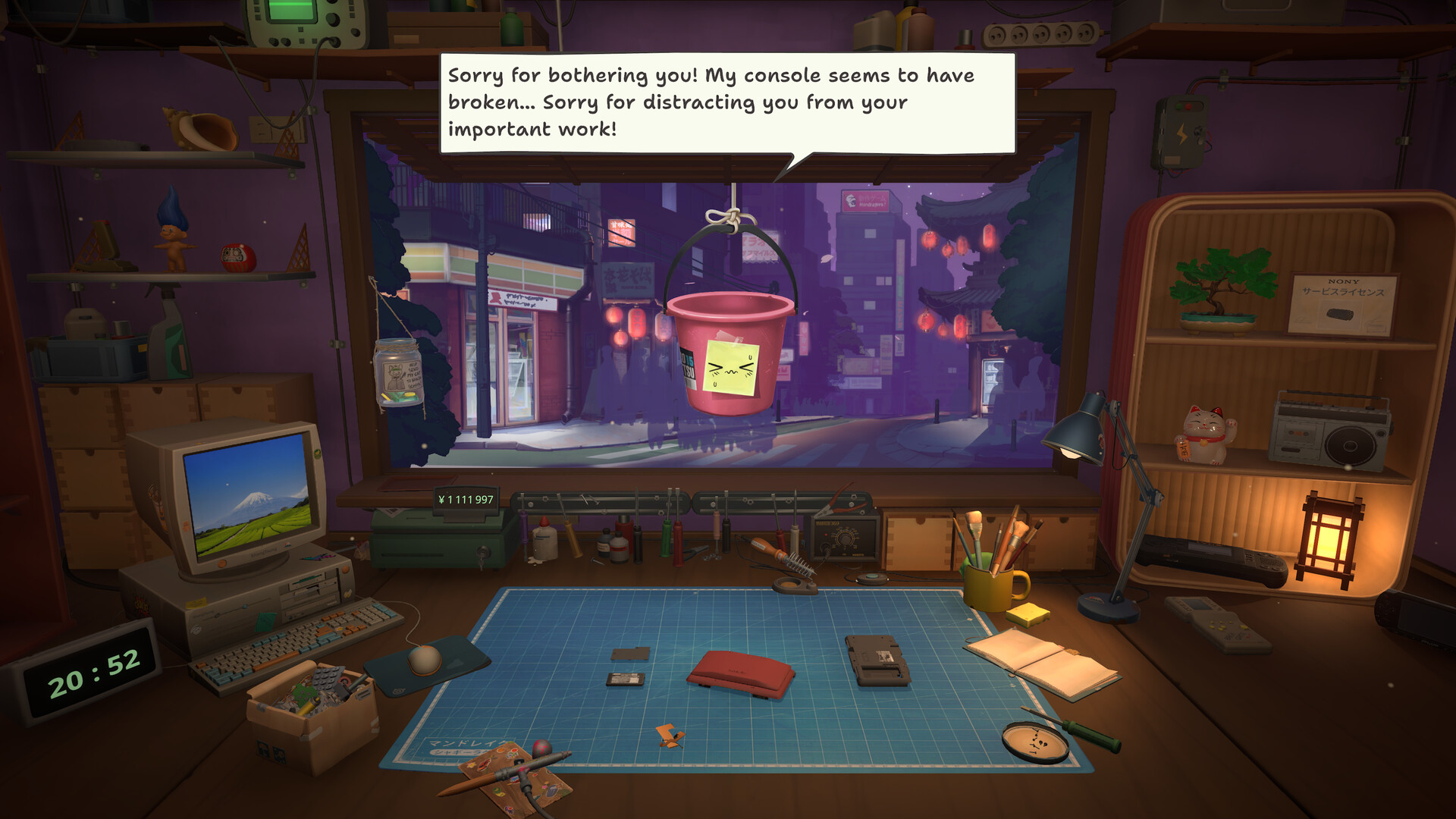
Story progress can depend on a completed repair, a To-Do, and the next conversation. Check all three before treating a quiet shop as a softlock.
Current recovery order
Confirm hotfix 1.0.015 first. If the blocker follows the rock musician's guitar hand-in or a three-star result, retry once from a protected pre-hand-in save. Preserve saves created before 1.0.013 instead of overwriting them. For every unrelated progression problem, continue with the normal To-Do, device-box, order, mail, software, license, conversation, competition, and save checklist.
- Confirm hotfix 1.0.015
- Retest the guitar / three-star blocker from a protected pre-hand-in save
- Preserve saves created before 1.0.013
- Use the normal checklist for unrelated progression problems
Where are you stuck? Evidence-led story triggers
This is not a copied nine-stage walkthrough. It lists only triggers supported by official patch notes or clearly labeled player reports; unknown narrative stages remain unclaimed.
| Concrete trigger | Expected next state | Evidence |
|---|---|---|
| Required license purchased and its main-quest order completed | The blocked main quest can advance after updating and replaying the step | Official 1.0.013r blocker fix |
| Rock-musician guitar receives the required three-star hand-in | The next story state loads after delivery | Official 1.0.015 hotfix target |
| All accepted workshop boxes and To-Dos completed | A new order, mail or visitor can appear | General diagnostic; not a guaranteed stage number |
| Required mail read and software action completed | The linked order or conversation becomes available | Player/developer troubleshooting guidance |
| Competition repair handed in and result screen completed | The related follow-up can trigger | Community progression checkpoint |
| Day 32: only online orders and no character jobs | No successful next trigger is established by the report | Player report / Watching: check Akiba Championship access and Robodog License evidence; record To-Do, mail, licenses and build before reporting |
Previous fixes and historical patch context
Patch 1.0.013r remains relevant history: it fixed older story blockers involving bought licenses and main-quest orders. It is not the current build. Use those notes to identify a historical cause only after testing hotfix 1.0.015 and protecting the original save.
Quick answer: check these in order
Do not skip days at random. Check the To-Do list, every shelf and device box, all active counter and email jobs, unread or partly scrolled mail, required software installs, tool or license requirements, room and character conversations, and the latest competition result. Save to a new slot, return to the menu, reload, and recheck. Only then compare the current build with recent technical reports.
Developer guidance versus confirmed bugs
In the current Steam thread, FUNTUL says the team is aware of some broken-story issues while also warning that missed To-Dos or a lost device box are common. That is not a promise that one checklist fixes every save. Use the checks below to establish which visible trigger is missing, and preserve the original file before testing any workaround.
Progression audit
Work from concrete state rather than day number or cash total.
| Checkpoint | What to verify | If it is incomplete |
|---|---|---|
| To-Do | No task remains unchecked or off-screen | Finish the named action |
| Device boxes | No accepted device is on a shelf, floor, counter, or storage area | Return it to the bench and finish the ticket |
| Active jobs | Counter and email orders are delivered, not merely repaired | Complete hand-in or delivery |
| Newest messages were opened and scrolled | Read the full message and follow its action | |
| Software / license | Requested install and required capability are complete | Open the correct PC page or license category |
| Conversation | Every room and available character was checked | Let the current scene finish before advancing |
| Competition | Invitation, app entry, build, and result all resolved | Finish the current competition state |
| Save / build | A protected copy exists and the game is current | Update, reload the copy, then retest |
Find a lost device box
Walk the shop slowly with the To-Do list visible. Inspect every shelf level, the floor beside storage, the counter, delivery area, and the bench. A repaired device still in its box can look like finished clutter while its hand-in remains unresolved. Open each suspicious box and compare the device name with active tickets. Do not sell, shred, or discard anything while reconstructing the queue.
Mail, software, and licenses
Open the computer and review the newest messages from top to bottom, including text below the first visible screen. Check whether a proposal, delivery, software installation, or license purchase is the actual next action. Buying unrelated licenses early is mentioned in player speculation, but the current developer reply does not confirm it as a universal cause. Treat it as report context, not a proven trigger.
Character and competition gates
Visit every accessible room and interact with available characters after the work queue is clear. If progression stopped around the BreadBox joystick, Robodog license, Bucket message, or Akiba invitation, confirm that the associated repair was returned and that the competition app or result screen fully resolved. Link the exact last completed scene in a bug report rather than saying only that the story stopped on day 19 or 25.
Safe reload and backup plan
Create a new manual slot before testing. Quit cleanly, preserve the save folder, then reload the protected copy. Do not overwrite the only pre-stall checkpoint. If a recent backup exists, compare it only after documenting the current last scene, jobs, licenses, and inventory. The Save Location guide links tinyBuild's supported restore procedure for desktop platforms and Steam Deck.
When to file a bug report
Report after every visible blocker has been checked and the same state survives a reload on the current build. Include platform, game version, in-game day, last completed story scene, last returned device, active and finished jobs, To-Do state, shelves and boxes checked, newest mail, purchased licenses, competition state, and a screenshot or short video. Never upload the save publicly if it contains personal folder names; send it only through a support channel that requests it.
Still no story NPCs after 1.0.015?
Update first: hotfix 1.0.015 addresses story progression, but it does not prove every stalled save is repaired. A new Steam report describes losing story tasks after a console-cleaning job, then continuing only email orders from roughly day 9 to day 22. The poster does not specify a build, so this is not proof of a 1.0.015 regression. Check the current story ticket, pending dialogue and unreturned device before waiting more days. If nothing changes, preserve your save and report the last NPC, completed repair, day and installed version. Do not overwrite the only copy or restart the whole campaign solely on this report.
Story Stuck After the Championship
Status: Player reported / Watching. A current report describes finishing the championship and the Robodog repair but receiving no next story beat. This is not a confirmed universal trigger. Protect the save, clear visible To-Dos, mail and unfinished hand-ins, leave and re-enter the shop once, then record the build, last completed event and day before reporting it.
Story Stuck After Robby / Robodog Repair
Status: Player reported / Watching. If Robby is returned but no customer or story task appears, confirm the repair hand-in fully completed and check mail, phone and active orders. Do not repeatedly skip days or overwrite the pre-hand-in save. Record the customer, result screen, day and build; there is no verified universal workaround yet.
No Walk-Up Customers — Is That Normal?
Online repair orders can continue even when story or walk-up customers stop appearing. A current Day 30 report says the player had completed the To-Do list, upgraded the shop and still received only online orders. That is a player report, not proof that furniture, wall paint or star rating is a universal trigger.
- Separate ordinary online orders from named story/NPC visits
- Check To-Dos, mail, phone messages and unfinished customer hand-ins
- Confirm the current build and the last named customer who appeared
- Do not buy random upgrades or skip many days as a guaranteed fix
- Protect the save and report the day, last story event and empty queues if walk-ups remain absent
Cross-check this step with Patch 1.0.013r, then use Save file location to choose the next action without changing several variables at once.
Research links
These are the primary pages used to check the facts and current release context in this guide.
Official information, observable release behavior, and community reports are deliberately separated. A community report is not presented as a universal fix until it can be reproduced or supported by current patch notes.