If your ReStory controller is too slow, compare the same task with the mouse where available. Separate pointer travel from rotation, scrolling and button response. Keep a clear record of the original layout before editing. No universal sensitivity multiplier, PlayStation-glyph switch or one-button device-recentring shortcut has been verified for this guide. A change that improves movement is not a complete fix until the other repair actions still work.
Quick answer: slow cursor does not mean every binding is wrong
Choose the row that matches your symptom before editing the layout. Keep the starting configuration available so you can compare the result and undo a change.
| Symptom | Current check | Restore or stop condition |
|---|---|---|
| Mouse works normally; joystick is slow | Compare the same device, view and target. Record the current layout. | Keep the baseline until one identifiable setting can be tested on the same task. |
| Cursor is faster after mapping changes, but rotation or cleaning fails | Restore the original layout and repeat the affected action. | Reject the faster mapping if repair actions regress; do not restart the story save. |
| Prompt icon differs from the controller, but the action works | Record the displayed icon, physical button and action separately. | Keep working bindings; do not break an action just to match an icon. |
| Device is off centre | Check only the controls visibly offered by the current build and view. | Stop if no suitable control is shown; do not guess a shortcut. |
Record the input setup before changing Steam Input
Write down the game version, operating system, controller model, wired or wireless connection, and active layout. A PC with an external gamepad is not the same setup as Steam Deck built-in controls. Record whether Steam Input is enabled for the game; do not toggle it and change bindings at the same time. Preserve a copy or clear record of the original layout, including any personal changes.
Use an ordinary task or a backed-up save, not an unfamiliar timed competition. Take a before record of the action that fails. Check button prompts separately from whether the action responds: the displayed symbol, physical button and actual result are three useful observations. If you cannot restore your starting configuration confidently, stop before editing it.
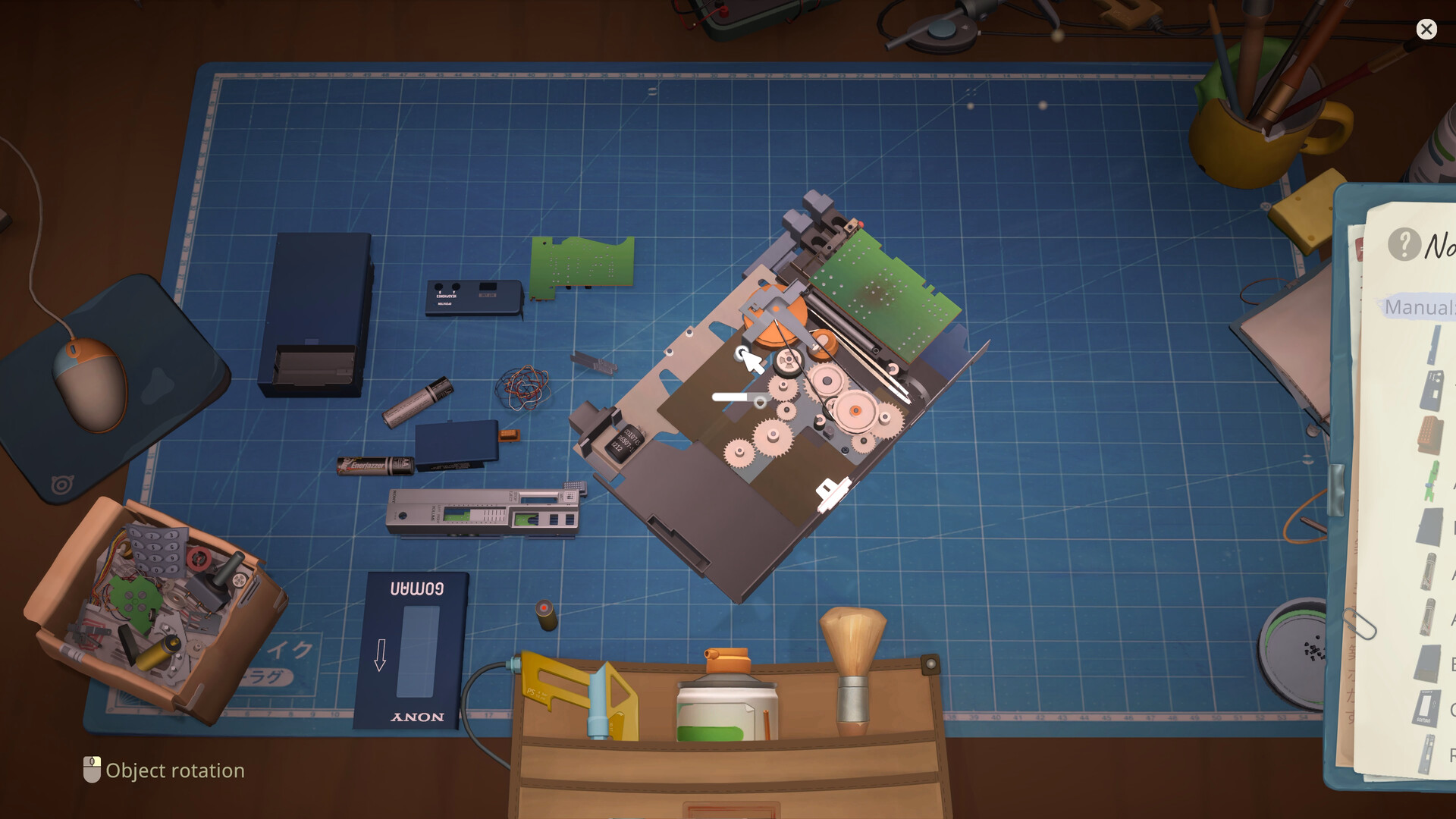
Keep removed parts visible and grouped by layer. Use the recorded order as a reference; if your Notebook shows something different, follow the game.
ReStory controller sensitivity: compare the mouse and joystick
Start with a small, visible target on the same device. Can the mouse reach it normally while the joystick takes much longer? Does the pointer move smoothly or stop intermittently? Then compare menu selection and scrolling without changing anything. These observations help describe the symptom without pretending to identify its cause.
An August 22, 2026 player report describes normal mouse movement but slow left-stick movement. The player tried a mouse-style joystick mapping and reported that rotation and cleaning then became difficult. That is a trade-off in one reported setup, not a developer-confirmed remedy or a result reproduced by this site. The separate August 6 controller discussion records differing early experiences; an August 7 developer reply acknowledged the feedback, without establishing a released fix.
For a ReStory joystick sensitivity adjustment, record the old value and change only the setting you can actually identify in your current layout. This guide does not prescribe a percentage. Repeat the same target test rather than comparing different scenes from memory. Do not copy a whole community template solely because its cursor looks quicker.
Cursor speed improves but rotation or cleaning stops working
First restore the recorded layout and repeat the same action. If rotation returns, the edited mapping deserves investigation; that comparison still does not establish a game-wide bug. If it was already failing before the change, record that fact instead of blaming the last adjustment.
Check what the edited input sends and which existing action handled rotation. A mouse-emulation mapping and native controller actions can use different assignments. Keep the working baseline while investigating one action. Lowering graphics, reinstalling the game or restarting a story save is not a substitute for comparing the actual binding. If you cannot rotate enough to clean the required face, reject the speed improvement and return to the layout that lets you finish the repair.
Retest the complete repair workflow after each change
Use the same device, view and task for each comparison. Leave untested actions marked unknown. A successful pointer test alone cannot certify a usable layout. Only test dialogue and software actions if they are already available in the protected save; do not progress or overwrite a story branch just to complete this checklist.
| Check | Before / after evidence |
|---|---|
| Pointer travel | Reach a small target; note speed and precision |
| Part rotation | Repeat the existing rotation action on the same part |
| Cleaning | Reach the needed faces while keeping useful control |
| Cancel or back | Leave the view normally without getting stuck |
| Menus and scrolling | Select and scroll the lists needed for this task |
| Dialogue or software | Test only where already available; otherwise unknown |
Xbox and PlayStation prompts on the PC version
An unexpected icon and an unresponsive input are different symptoms. Record the displayed prompt, the button pressed and the action produced. Check which controller the current layout recognises before making another change. A functioning action with a different icon should not be described as a broken binding.
There is no verified universal PlayStation-prompt switch in this guide. A PlayStation controller connected to a PC also does not demonstrate a separate PlayStation release of ReStory. Platform availability belongs to the platforms guide. Do not change several mappings to chase the appearance of an icon while losing a repair action that already works.
Can you re-centre a device with one button?
No general one-button recenter command has been verified here. A request for a feature in a discussion is not evidence that the feature exists. Record the device, view and action that moved it off centre, then consult the controls shown by your current build. Do not publish a guessed keyboard shortcut as a controller fix. If returning to the previous view restores a useful position in your own test, describe that observation with the build and device rather than promising it universally.
Prepare a reproducible controller report
Include the build, controller model, connection, layout, failed action and whether restoring the original layout changes the result. Keep the before and after records together. A short clip should show the relevant mapping and the complete action, not just a pointer moving across an empty screen. Include failures and say which actions were not tested.
This is a source-based guide, not a first-party hardware test. No fabricated Steam Input screen or edited success capture is offered as proof. Real comparison captures remain pending. For handheld compatibility use the Steam Deck guide; for physical repair steps use the Repair Guide. Frame-rate and temperature problems belong to the performance guide rather than this input checklist.
Controller settings FAQ
Should I enable or disable Steam Input? There is no universally verified setting here. Record the starting state, compare a single change, and restore it if essential actions regress.
What sensitivity value fixes the slow cursor? No common percentage has been validated across controllers and builds. Compare speed and precision on the same target and retest the full workflow.
Does a PlayStation controller mean the game is on PlayStation? No. This page concerns external controllers used with the PC version; consult platforms for release availability.
Keep the layout that completes the task
Keep ReStory controller settings only when the pointer, rotation, cleaning and menu actions needed for your task still work. If a change breaks one of them, restore the recorded configuration. If neither layout works, preserve the save and report the actual before-and-after observations. The next useful step is a reproducible input record, not a guessed preset or an unnecessary reinstall.
Research links
These are the primary pages used to check the facts and current release context in this guide.
Official information, observable release behavior, and community reports are deliberately separated. A community report is not presented as a universal fix until it can be reproduced or supported by current patch notes.